
A while back we wrote about peak and off-peak pricing: charging a different price for the same court on weekday mornings, weekday evenings and weekends is the most direct way to get more out of the space you already have.
Everyone agrees with the idea. But as any owner who runs on a booking system knows, the "setup" step is where it tends to get hard. One of our partners prices their court like this: "NT$200 an hour for the first 3 hours, NT$100 an hour from the 4th hour on." It's a perfectly reasonable price list, hardly a rare one, and customers get it at a glance. Yet in a general-purpose system, doing it neatly was never that easy.
In this week's update, we rebuilt Reservalue's flexible pricing from the ground up, around one idea: whatever your price list looks like on the wall, that's what you fill in on the back end.
How do you set it up?
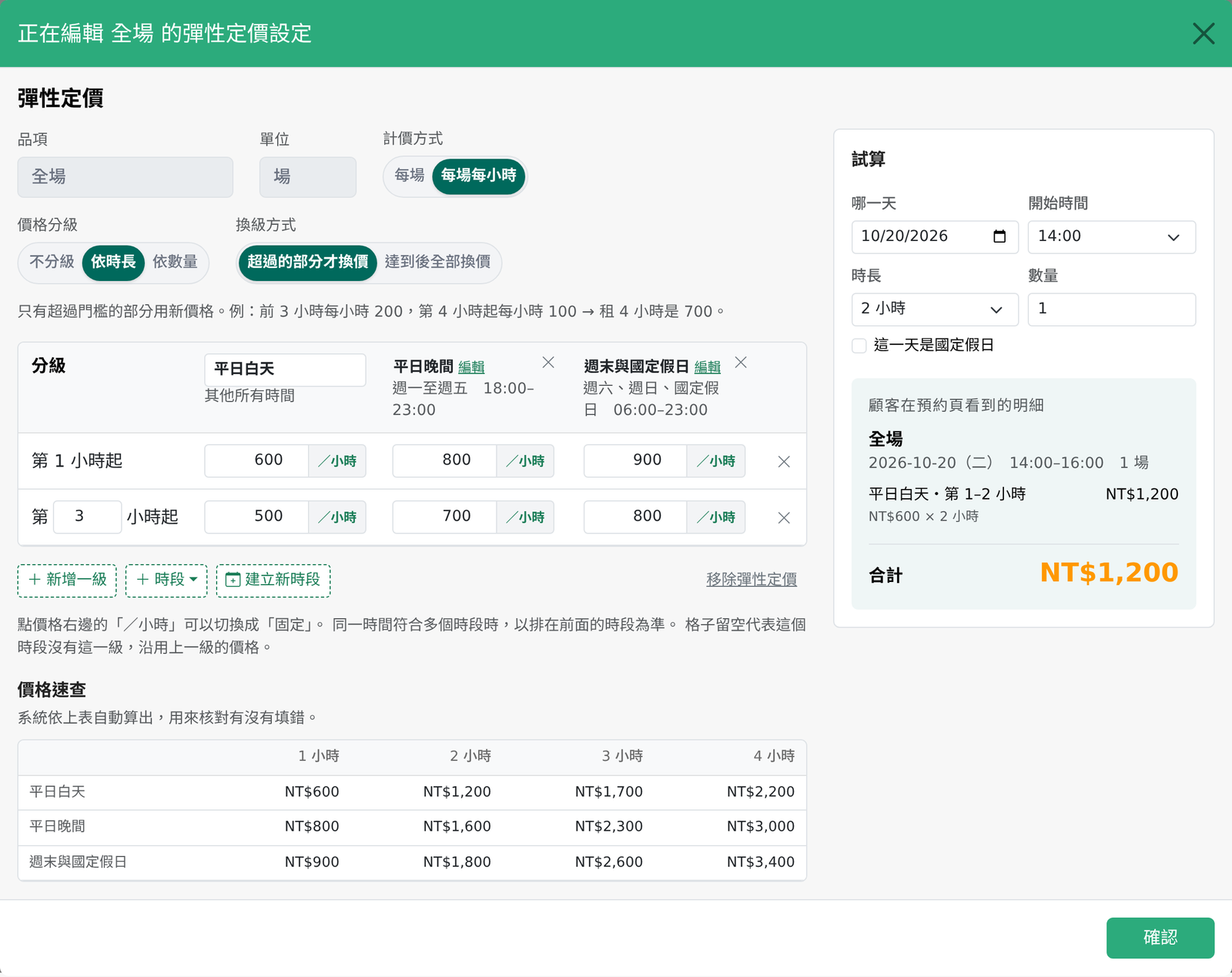
Open "Flexible Pricing" on a service item and what you get is a price list:
- Columns are "windows": weekday evenings, weekends, holidays and public holidays — as many windows as you define, alongside a default column for "all other times".
- Rows are "tiers": tiered by duration or by quantity.
- One price per cell: an hourly rate by default, or tap once to switch it to a fixed amount — so whole-venue rates and package prices fit too.
When you set more than one tier, how the next tier kicks in is up to you: "only the part above the threshold" (for example NT$200 for the first 3 hours and NT$100 from the 4th hour on), or "the whole order once reached" (for example NT$550 at full price, NT$500 per person for 5 people and up, so 5 people is 500 × 5).
Public holidays, without entering dates one by one (for shops in Taiwan)
Long weekends used to mean adding the dates to a window one at a time. Pricing windows now have a "Public holiday" row: Taiwan's public holidays are built in (substitute days and make-up working days included), and we will refresh them every year from the official government calendar. Tick it and holiday pricing applies by itself.
On top of that, pricing windows can now be created right inside the flexible pricing editor. They share one definition with the standalone Pricing Windows page, so there's no hopping back and forth.
Check as you go: the cheat sheet and the simulator
Once the table is filled in, how do you know it's right? The cheat sheet underneath the table works out the total for 1 to 4 hours in every window from what you typed:

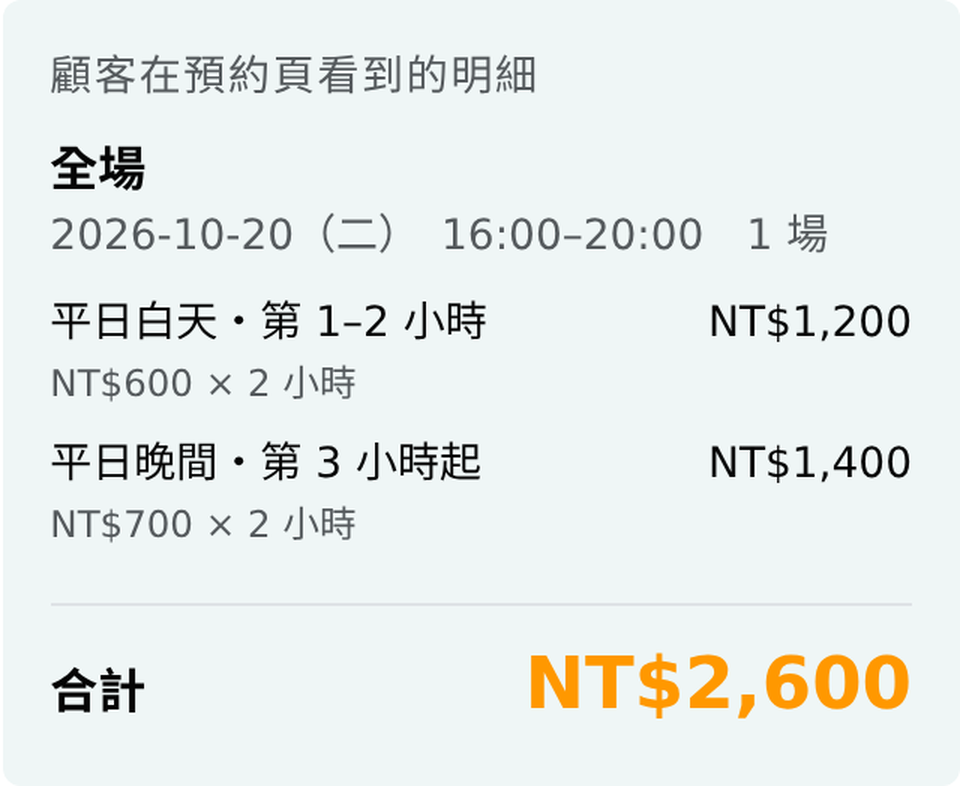
The simulator on the right goes a step further: set a specific date, a start time and a duration, and preview exactly what the customer will see on the booking page. Even bookings that straddle two windows are split automatically (as shown below: a Tuesday 16:00 booking for 4 hours gets 2 hours at the weekday daytime rate, then 2 hours in the weekday evening window at the from-the-3rd-hour price).
Your old rules are already converted
If you had flexible pricing set up before, we've already converted every existing item's legacy rules into the new price table — nothing to redo. Head to Services → Items and tap the $ button next to an item to see your new price list.
Still working out a slightly complicated price list by hand? Get in touch — send us your price list and we'll set up your booking page for you:
Not using Reservalue yet? Try it free for 30 days, no contract required — sign up now.
#Reservalue #FreeTrial #BookingSystem #FlexiblePricing #PriceList #PeakOffPeakPricing #TieredPricing #PublicHolidays #CourtBooking #VenueHire #Studio #BeautyIndustry #SmallBusiness #TaiwanStartup #SaaS